Creating Housekeeping Periods
The Housekeeping Periods option allows users to create housekeeping period schedules for guests’ room maintenance at the property. The records created here can be added to guest’s stay record by selecting an option from the Housekeeping Period drop-down list in the Special Requests tab of the Reservation screen.
Breakpoint: 75040 - Housekeeping Periods (Housekeeping - Housekeeping)
Perform the following steps to create the housekeeping period record:
Navigate to Settings à Housekeeping Setup à Housekeeping Periods.
Click Create Housekeeping Period. The Create Housekeeping Period screen appears.
Refer to the following table and fill in the fields:
|
Field |
Description |
|---|---|
|
Housekeeping Period Code |
A unique code to identify the housekeeping period. Up to 15 alphanumeric characters are supported. |
|
Housekeeping Period Description |
A description that details the time and housekeeper’s work in the room. Up to 50 alphanumeric characters are supported. |
|
List Order |
The position in which the housekeeping period code must appear in the grid. The system automatically generates a value based on the value of the previously created list item. Up to 999 records are supported. |
|
Active |
When enabled, it indicates that the housekeeping period is active. |
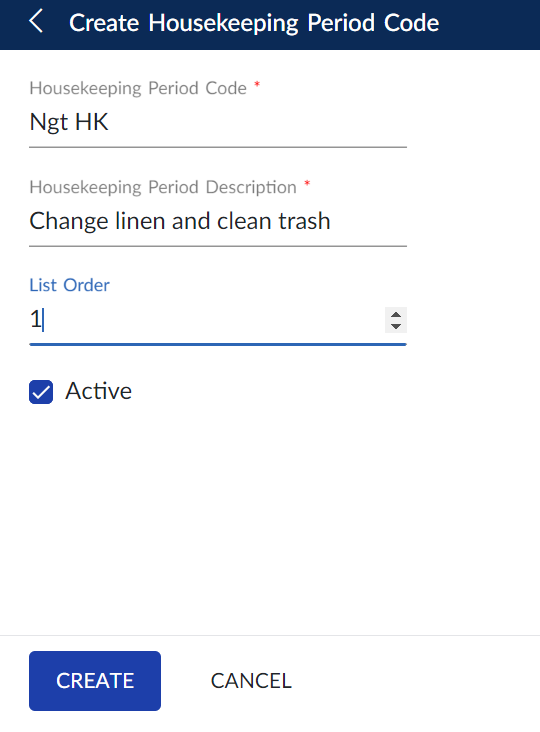
Click Create. The housekeeping period code is created and displayed in the grid.
Users can also perform the following actions in the Housekeeping Periods screen:
-
Modify the details of the housekeeping period using the Edit icon.
-
Delete the housekeeping period record using the Delete icon.
-
Drag the housekeeping period record to change positions within the grid using the Drag icon. The list order number is automatically updated after the change in positions.
-
Copy the housekeeping period record using the Copy icon. When copied, all the details of the existing period, except the period code, is copied to the new housekeeping period record.
-
Search for the housekeeping period using the code or name.
-
Print the housekeeping period details using the Print icon.